Please read this guide right to the end as additional steps are now required before you are able to send mail.
If you require help with Outlook Express at any time, please call Greg on 01325 489 300. If your screen does not match those below, please go back and view the correct instructions for your software.
1. Open your email program and click "Tools" and then "Accounts" like so:

2. Click the "Add" button (top right) and then "Mail..." like so:

3. Type a generic name to refer to your email account by:
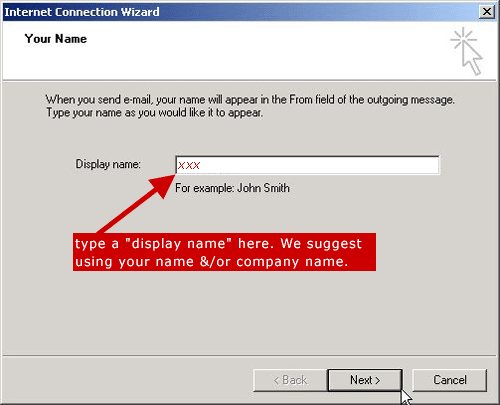
3a. click "Next"
4. Enter the email address (item1) specified on the documentation from Edward Robertson:
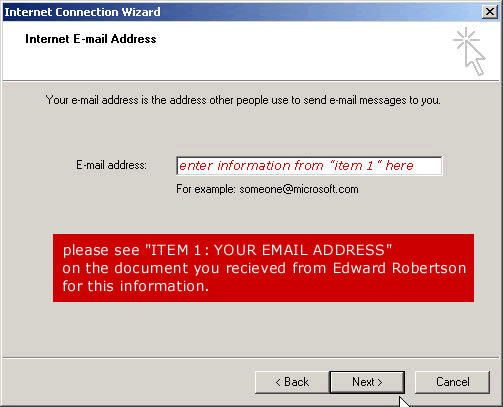
4a. click "Next"
5. Select a Server Type and enter the Incoming Mail Server (item2) and Outgoing Mail Server (item 3) from the documentation
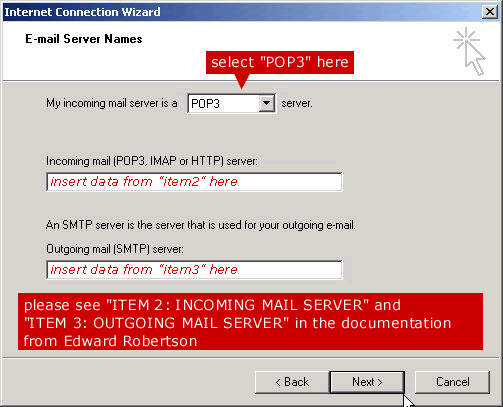
5a. click "Next"
6. Enter the Username (item 4) and Password (item 5) from the Edward Robertson documentation and check the box marked "remember password"
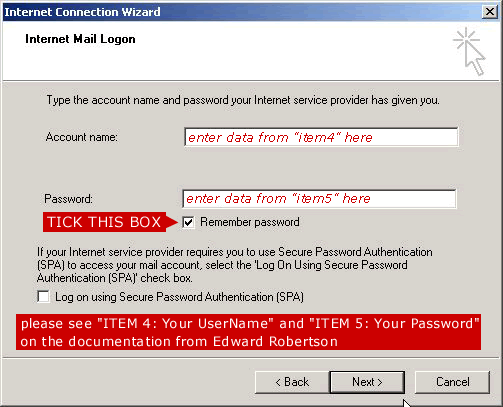
6a. click "Next"
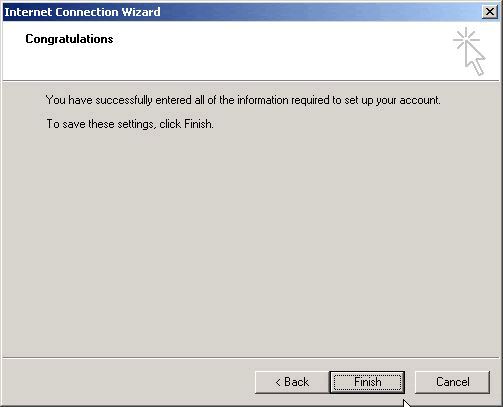
7. You should now see this screen - simply click finish
Your email is not fully set-up yet
PLEASE READ ON!
8. If you can see the screen shown in step 2 - please click "close" (bottom right)
WHAT TO DO NEXT:
Due to system changes you will only be able to send email on this account after following the steps below.
follow Step 1 on the guide again:
- at this point another window should appear (a).
but when the new window appears do the following:
1. click on the 'mail' tab (2nd from left along the top)
2. highlight each new account (possibly called "mailhost.netbenefit.com")
3. click the 'properties' button on the right hand side
- at this point another window should appear (b).
4. click on the 'servers tab (2nd from left along the top)
5. tick the last box on the screen, titled: "My server requires authentication"
6. click on the "settings" button to the right of this
- at this point another window should appear (c).
7. click the top circle, entitled: "Use same settings as my incoming mail server"
8. close this window (c) by clicking "OK"
9. close the next window (b) by clicking "Apply" and then "OK"
10 close the last window (a) by clicking "close"
11. You should now be able to send and receive mail.
Please send an email to greg@edwardrobertson.co.uk (or to your own email address or one of your colleagues) to test that your account is fully operational.
ERRORS OR NON-RECEIPT:
You should be aware that emails may take a few minutes (or even longer) to reach the recipient.
If your mail has not been returned within 3 hours or you get an error message please call us on 01325 489 300 - error messages usually begin with "0x800" and can help us determine problems much faster.